 Quizproof
Collect emails with the opt-in question
Add an Opt-in question to a quiz to collect shoppers' emails with the consent they choose. Quizproof saves each
one as a customer in your Shopify admin, tagged quizproof. It needs Shopify's permission to create customers
first: grant it under Settings › Email opt-in settings.
Before you start: grant the permission to create customers (step 1 below). Shoppers who ask for their results by email get them from Quizproof unless you choose another sender (see "Sending the results by email" below).
Turn it on#
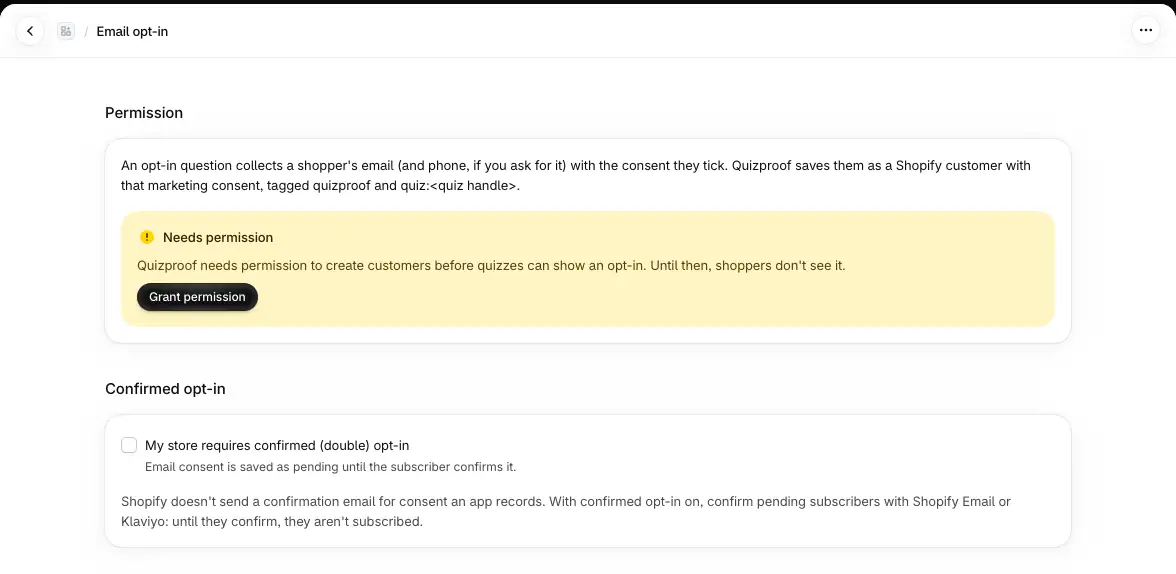
Go to Settings › Email opt-in settings. If it says Needs permission, choose Grant permission and approve Shopify's request. The page then shows Email opt-in is on.
Open the quiz's editor and choose Add question › Opt-in.
Choose where it shows, the phone field and the consent checkboxes (below).
Publish.
The permission is optional, so Shopify doesn't ask for it at install. Until it's granted, shoppers don't see the opt-in, even in a published quiz.
Set up the question#
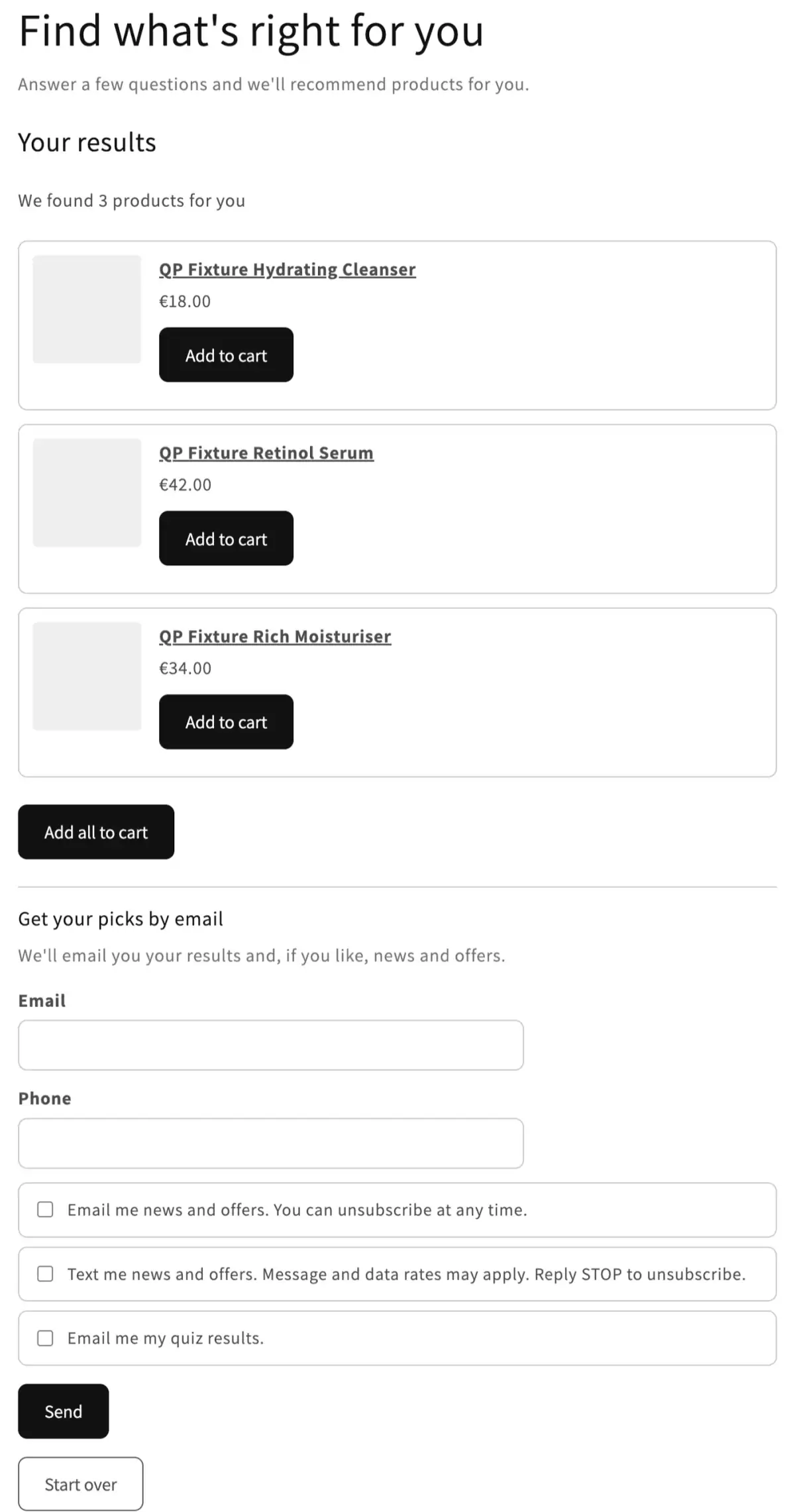
Show the opt-in: After the results (recommended) shows the form under the results. Before the results makes it a step before them, which shoppers can skip with No thanks. Results are never locked behind an email. Asking before the results makes fewer shoppers finish.
Ask for a phone number: adds an optional phone field.
Consent checkboxes: offer any of
Email marketing: "Email me news and offers." Shopify records email marketing consent.
Text message marketing: needs the phone field. Shopify records SMS marketing consent.
Email my results: "Email me my quiz results." The shopper gets their results by email (see "Sending the results by email" below). It doesn't subscribe anyone.
Each checkbox is separate and never pre-ticked. A shopper can send an email without ticking any.
The form's heading is the question itself: edit it in the Question field like any other question. A new opt-in question starts as "Get news and offers by email". Only promise results by email if you send them (see "Sending the results by email" below). The checkbox texts, Send and No thanks are in the editor's Text tab (group Opt-in).
Where opted-in shoppers appear#
Customers, in your Shopify admin: every shopper who sends the form becomes a customer (or updates an existing one), tagged
quizproofandquiz:<quiz handle>. They are subscribed to email or SMS marketing only if they ticked that box. A customer who unsubscribed earlier is never re-subscribed without a new tick.The Respondents section on the Analytics page: each respondent's consent and email (unless respondent data is limited to the store owner under Settings › Privacy).
Klaviyo, if you connected it: see Klaviyo setup.
Shopify Flow: the Quiz taker opted in trigger, when a turned-on workflow uses it. See Settings › Integrations › Shopify Flow.
To also store a question's answer on the customer, open that question and tick Save the answer to the customer.
It adds a tag made of the Tag prefix and the answer, such as skin_type:Dry with the prefix skin_type. Keep it off for sensitive answers such as health or allergies: customer tags
are visible to your staff and other apps.
Confirmed (double) opt-in#
If your store requires subscribers to confirm their email, tick My store requires confirmed (double) opt-in. Email consent is then saved as pending. Shopify doesn't send a confirmation email for consent an app records, and Quizproof doesn't either: confirm pending subscribers with Shopify Email or Klaviyo. Until they confirm, they aren't subscribed. SMS consent is always single opt-in. The results email isn't marketing, so this doesn't hold it back.
Sending the results by email#
A shopper who ticks Email my results gets an email with their recommended products and a link back to their results. Choose who sends it under Settings › Results email:
Quizproof sends it (the default): Quizproof emails the shopper once the quiz is completed and the box is ticked. It comes from your store's name, and replies go to your store's contact email. It goes only to shoppers who ticked the box, once per quiz session, and doesn't subscribe them to anything. Its text is in Settings › Shopper text (group Results email), and each quiz can change it in its Text tab. Send test email to me sends one to you with sample products from your store.
Klaviyo's results flow sends it: the flow Quizproof creates in your Klaviyo account sends it. By default that flow emails only shoppers subscribed to your email marketing; to also email shoppers who ticked only Email my results, turn on Send results email to shoppers who didn't subscribe. See Klaviyo setup.
Another tool sends it: for example Omnisend, through Shopify Flow. Settings › Integrations › Shopify Flow has the recipe. Quizproof sends nothing.
Nobody sends it: shoppers who tick Email my results get no email. Leave that checkbox out, and don't promise the results by email in the question.
Quizproof's email, and the results page its link opens, have a "Don't email me my quiz results" link. It stops the results email for that address and cancels any that hasn't gone yet. A shopper who marks the email as spam gets no more of them; if several shoppers do, Quizproof pauses your store's results emails and Settings › Results email says so.
If it doesn't work#
The opt-in doesn't show on my quiz. The permission isn't granted, or the quiz wasn't published after you added the question. Check Settings › Email opt-in settings, then Publish.
Shoppers are in Customers but not subscribed. They didn't tick Email marketing, or confirmed opt-in is on and they haven't confirmed yet.
Shoppers ask for their results email and get nothing. Open Settings › Results email: it shows who sends it, and Quizproof's latest sends with the reason when one wasn't sent (for example, the shopper stopped it or the address bounced). If Klaviyo sends it, its flow must be live (or manual, with each send approved in Klaviyo), and without Send results email to shoppers who didn't subscribe only subscribed shoppers get it. See "Sending the results by email" above.
Related#
Privacy and consent (what is stored, withdrawals and data requests)
Questions? Email support@quizproof.app.
Menu paths such as Settings › Privacy are inside Quizproof: in your Shopify admin, open Apps › Quizproof. Where an article means Shopify's own settings, it says so.
Something unclear? Email support@quizproof.app. We aim to reply within 1 business day.
More in Integrations: Klaviyo setup