 Quizproof
The results page and add to cart
The results show the products your rules picked, with live prices and availability from Shopify in the shopper's own market, and an Add to cart button on each. What happens after a shopper adds a product, and whether Add all to cart is offered, are set on the quiz's Result tab under Add to cart.
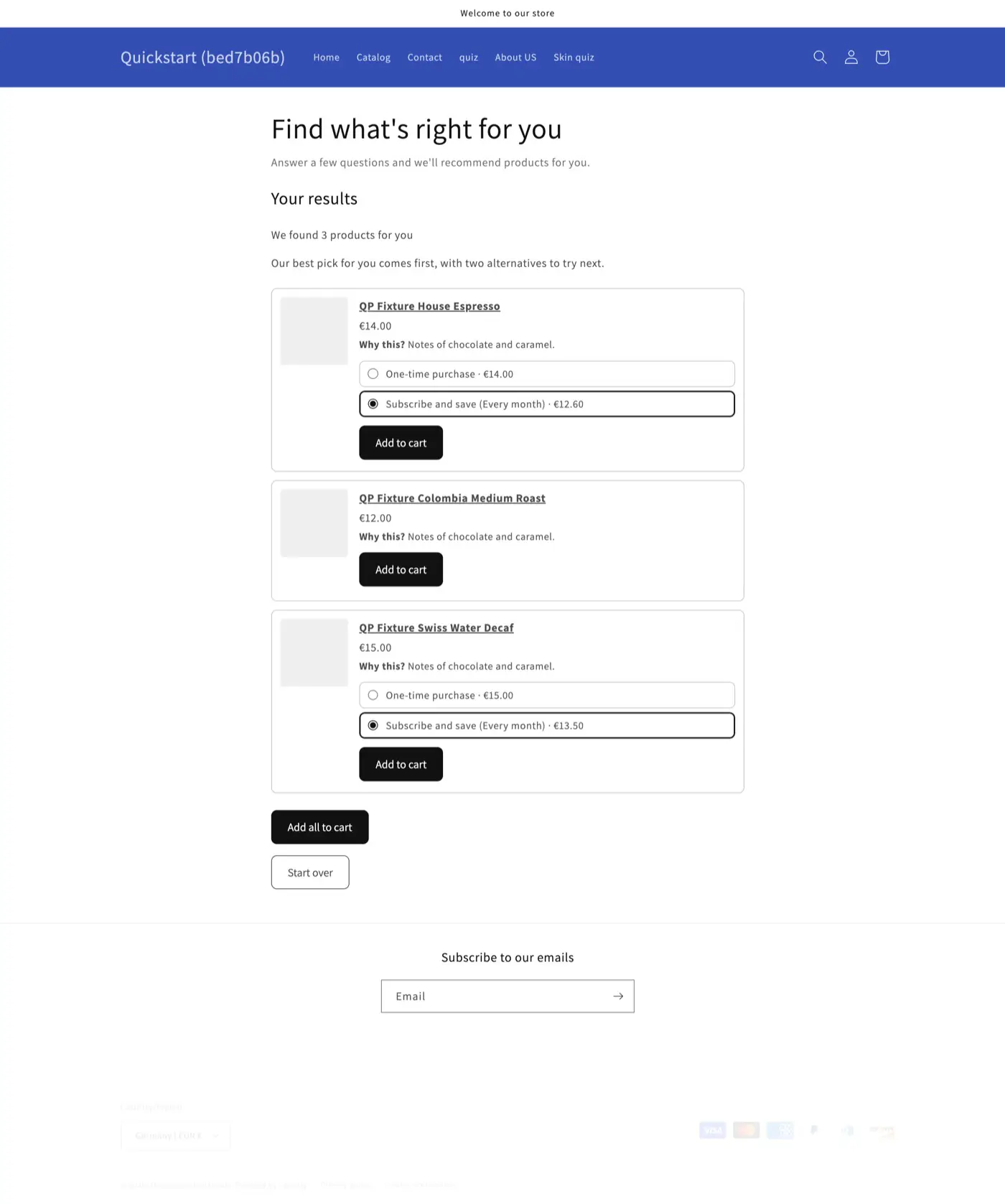
What a product card shows#
The product image and title. The title links to the product page with the shown variant selected.
The variant name (a size or shade), for products that have variants.
The price in the shopper's currency. When the compare-at price is higher, it is shown struck through with a Sale badge.
Your Why this? line, if you wrote one for products like it.
A subscription choice, when the variant can be bought by subscription (below).
Add to cart.
Above the cards: "We found 4 products for you" (your wording, under Settings › Shopper text), any Texts for answers whose condition holds, and step names for a routine. Below them: Add all to cart when two or more products show, your opt-in form if the quiz has one, and Start over. Starting over doesn't count as a new completion.
Prices, stock and variants#
Prices and availability are read from Shopify when the results appear, for the shopper's country. A product that is sold out, or not sold in the shopper's market, is never shown: Quizproof asks for the next-best match instead, up to two times. If nothing is left, the shopper sees your no-match message (see A shopper sees no matching products).
There is no variant picker on the card. With Recommend set to Products, the card shows the product's first variant that is available to that shopper; with Variants, the exact variant your rules picked. A shopper who wants another size goes to the product page through the title.
Subscriptions#
If a variant has selling plans, the card offers One-time purchase and Subscribe and save, and a Delivery choice when there are several plans and the shopper picks the subscription. A product sold by subscription only shows Subscription only. Tick Preselect “Subscribe and save” to start with the subscription chosen; shoppers can still choose one-time. If a plan is no longer available when the shopper adds the product, it is added as a one-time purchase with a note saying so, or not added if the product is subscription only.
Add to cart settings#
Go to Quizzes, open the quiz, choose Edit questions and open the Result tab.
Under Add to cart, choose:
Offer “Add all to cart” (on by default; shown with two or more products).
Preselect “Subscribe and save”.
After adding to cart: Stay on the results, Go to the cart or Go to checkout. The shopper moves on only when every product they asked for is in the cart.
Publish the quiz.
What the shopper sees in your theme#
Quizproof adds products with Shopify's standard cart action, so the theme decides how the cart reacts:
| Theme | After Add to cart |
|---|---|
| Horizon and other themes with a cart drawer the action updates | The cart drawer and count update on the spot. |
| Dawn (notification cart) | The cart count in the header updates on the spot. Dawn's own "added to cart" pop-up doesn't open; the card says "Added to cart". |
| Themes the action doesn't recognise | The page reloads and the quiz comes back on the results with "Added to cart". |
If it doesn't work#
A card says "Try again" and a message. Shopify refused that product, for example not enough stock. The message comes from Shopify when it gives one. Try again sends it again.
Add all shows "2 of 3 added". The products that worked stay in the cart. "Some items weren't added" lists the others with Try again, Choose one-time (for a subscription) and Remove.
The page went to the cart before everything was added. It doesn't: with any failure the shopper stays on the results.
Prices differ from what I see in the admin. The quiz shows the shopper's market price and currency, as your product pages do for that shopper.
Related#
The email opt-in (emailing shoppers their results)
Questions? Email support@quizproof.app.
Menu paths such as Settings › Privacy are inside Quizproof: in your Shopify admin, open Apps › Quizproof. Where an article means Shopify's own settings, it says so.
Something unclear? Email support@quizproof.app. We aim to reply within 1 business day.
More in Results and cart: Markets, currencies and languages