 Quizproof
Analytics: completions, add to cart and revenue from quizzes
Analytics shows, per quiz, how many shoppers saw, started and finished it, what they added to the cart, and the orders and revenue that came from its results. An order counts when the shopper added a recommended product from the quiz results and ordered within 30 days.
Read the Analytics page#
Go to Analytics.
Pick the Quiz, the dates (From, To, or Last 7 days, Last 30 days, Last 90 days) and the Version (All versions or one published version). A range can be up to 366 days.
Point at a metric's name to see its definition.
The numbers are rebuilt every hour; the page says when ("Data as of …"). Days follow your store's time zone.
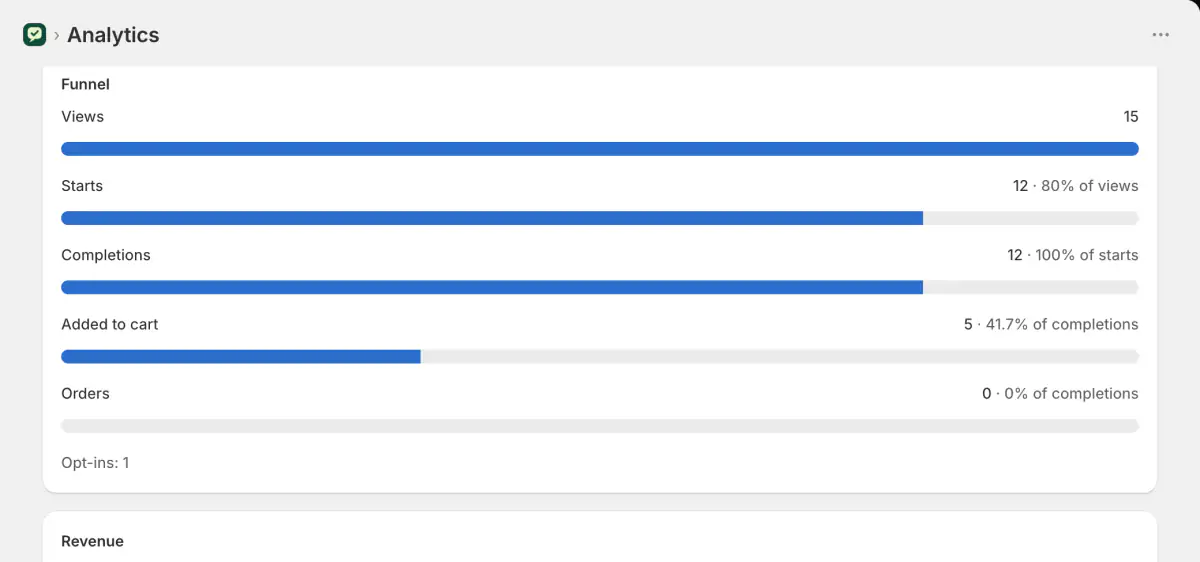
What each section shows:
Funnel: Views, then Starts, Completions, Added to cart and Orders, each with its rate, plus Opt-ins. A view is the quiz shown on screen or its popup opened; a start is the first interaction; a completion is a shopper reaching their results.
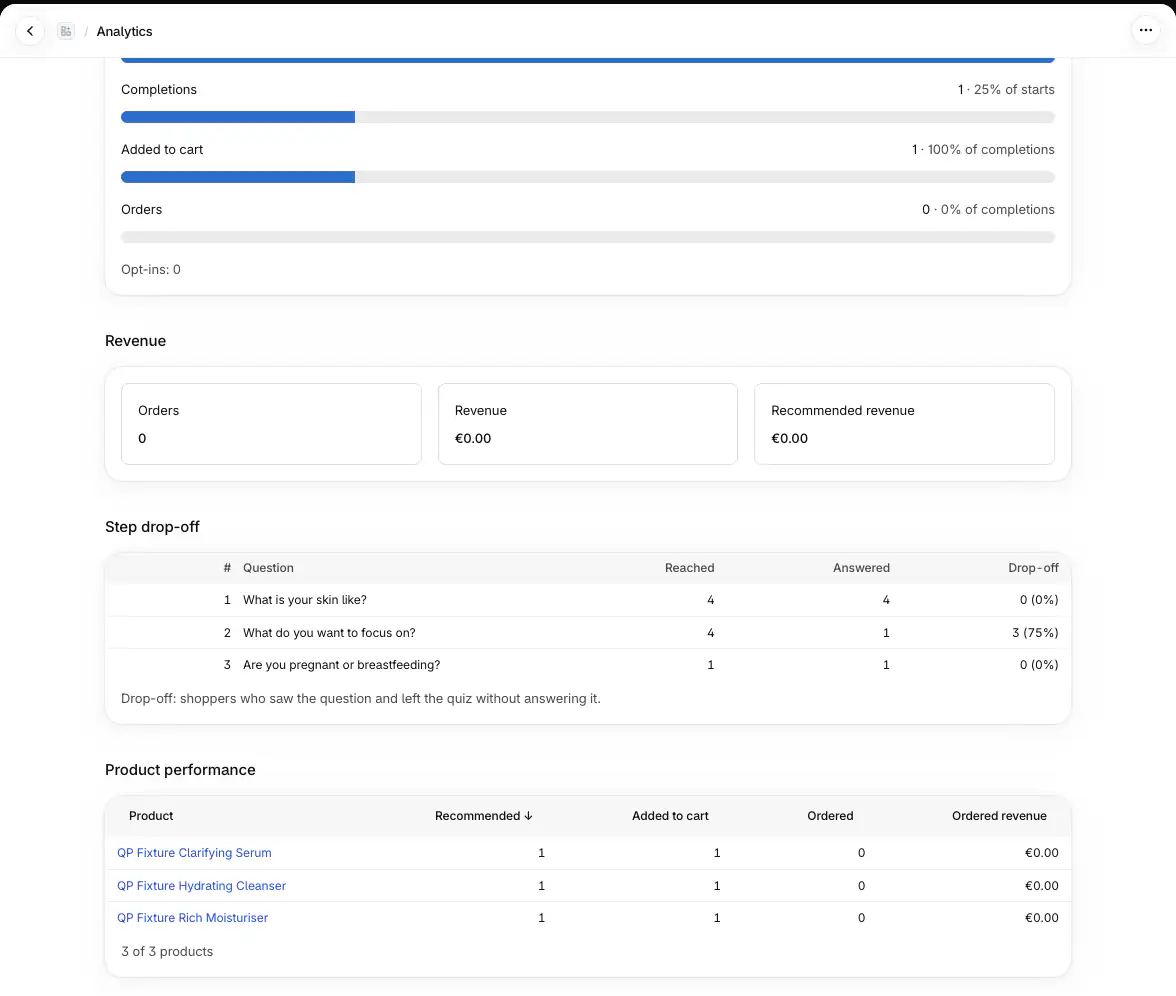
Revenue: Orders, Revenue (the orders' gross totals) and Recommended revenue (the part of those orders that is recommended products).
Step drop-off: per question, how many shoppers reached it, answered it, and left without answering.
Product performance: per product, how often it was recommended, added to cart and ordered, and its ordered revenue. Select a column to sort.
By day: the same counts day by day.
Mapping health: whether the catalog checks are current and how many products are held back for review.
Respondents: one row per quiz session, completed or abandoned, with the answers, results, consent, email (when the shopper opted in) and orders. Open one to see the whole session. Export CSV downloads the list.
Test links and the editor's preview are never counted, nor are suspicious sessions (bots, scripted traffic) whose completions your plan doesn't count. Sessions are counted on the day they started; orders on the day they were placed.
Who can see respondents and how long answers are kept is set under Settings › Privacy; see privacy and consent.
What counts as a quiz order#
When a shopper adds a recommended product to the cart from the results, Quizproof sets a hidden cart attribute,
__qp. It holds an opaque session id and a result number, never answers or contact details. Shopify hides it from shoppers and shows it on the order's details page in your Shopify admin.When the order is placed, Quizproof records it against that quiz session: the order's total, and the total of the lines that were in the recommendation.
An order counts within 30 days of finishing the quiz.
Revenue is gross: refunds aren't subtracted yet.
Why some quiz sales aren't counted#
Cookie consent. Where your Shopify customer privacy settings require visitors to agree to analytics, Quizproof sets
__qpand sends events only after the shopper accepts analytics. A shopper who declines still gets results and can add to cart, but their order isn't counted. Quiz revenue in those regions is lower than the real figure, by design.Orders that skip the cart. Quizproof counts only orders that carry
__qpfrom the cart; it never guesses from the browser, an email or the time. An order placed through a buy-now or express checkout button (Shop Pay, Apple Pay, Google Pay) on a product page, instead of from the cart, isn't counted.
Send quiz events to GA4, Google Tag Manager or the Meta Pixel#
With analytics consent, Quizproof publishes Shopify customer events (ids only): quizproof:quiz_viewed,
quizproof:quiz_started, quizproof:quiz_completed, quizproof:add_to_cart and quizproof:optin. No theme edits
are needed.
Google Tag Manager#
When a shopper finishes a quiz, Quizproof also pushes quizproof_completed to the page's
dataLayer, with the quiz handle, a session id and the recommended product ids. In GTM, create a trigger of type
Custom Event named quizproof_completed.
GA4 and the Meta Pixel#
Use a custom pixel:
Download quizproof-custom-pixel.js and open it.
In your Shopify admin, go to Settings › Customer events › Add custom pixel. Name it "Quizproof events".
Under Customer privacy › Permission, keep Required with Analytics ticked (and Marketing if you use the Meta Pixel).
Paste the whole file into Code. Fill in
GA4_MEASUREMENT_IDand/orMETA_PIXEL_ID; leave one empty to skip it.Save, then Connect.
GA4 receives quizproof_quiz_viewed, quizproof_quiz_started, quizproof_quiz_completed, quizproof_add_to_cart
and quizproof_optin. Meta receives QuizproofQuizViewed, QuizproofQuizStarted, QuizproofQuizCompleted,
QuizproofAddToCart and QuizproofOptin. Shopify's own page view, add-to-cart and purchase events are left to your
existing integrations.
If it doesn't work#
Analytics shows completions but no orders. The orders were placed by shoppers who declined analytics cookies, through a buy-now or express checkout button, or more than 30 days after the quiz.
Today's numbers look behind. The page is rebuilt every hour; check "Data as of".
I can't see respondents. The store owner limited them to the owner under Settings › Privacy.
The custom pixel sends nothing. Check it's connected, the IDs are filled in, and test with a visitor who accepted analytics.
Related#
Plans and limits (what counts as a completion for your plan)
Questions? Email support@quizproof.app.
Menu paths such as Settings › Privacy are inside Quizproof: in your Shopify admin, open Apps › Quizproof. Where an article means Shopify's own settings, it says so.
Something unclear? Email support@quizproof.app. We aim to reply within 1 business day.
More in Your data: How change control works, Privacy and consent, Your catalog in Quizproof: attributes, sources and data quality, Notifications and alerts