 Quizproof
Your catalog in Quizproof: attributes, sources and data quality
Quizproof keeps its own copy of your catalog and recommends products by their attributes, such as skin type or price range. Each attribute's values are read from your product data, and a product reaches quiz results only after you approve its values. Settings › Catalog data quality shows what was imported and what is missing.
The import and sync#
Right after you install, Quizproof reads your products from Shopify once: titles, tags, product types, vendors, collections, metafields, variants and market prices. Home shows the progress; quizzes can be built once the first import finishes.
After that, Quizproof keeps the copy in sync by itself: Shopify notifies it of most product edits, regular checks catch anything missed, and a full sync runs every night around 3:00 in your store's time zone. See how change control works for how quickly changes are caught.
To re-read everything now, go to Settings › Catalog data quality and choose Resync now. One sync runs at a time; the button waits while one is running.
Catalog data quality#
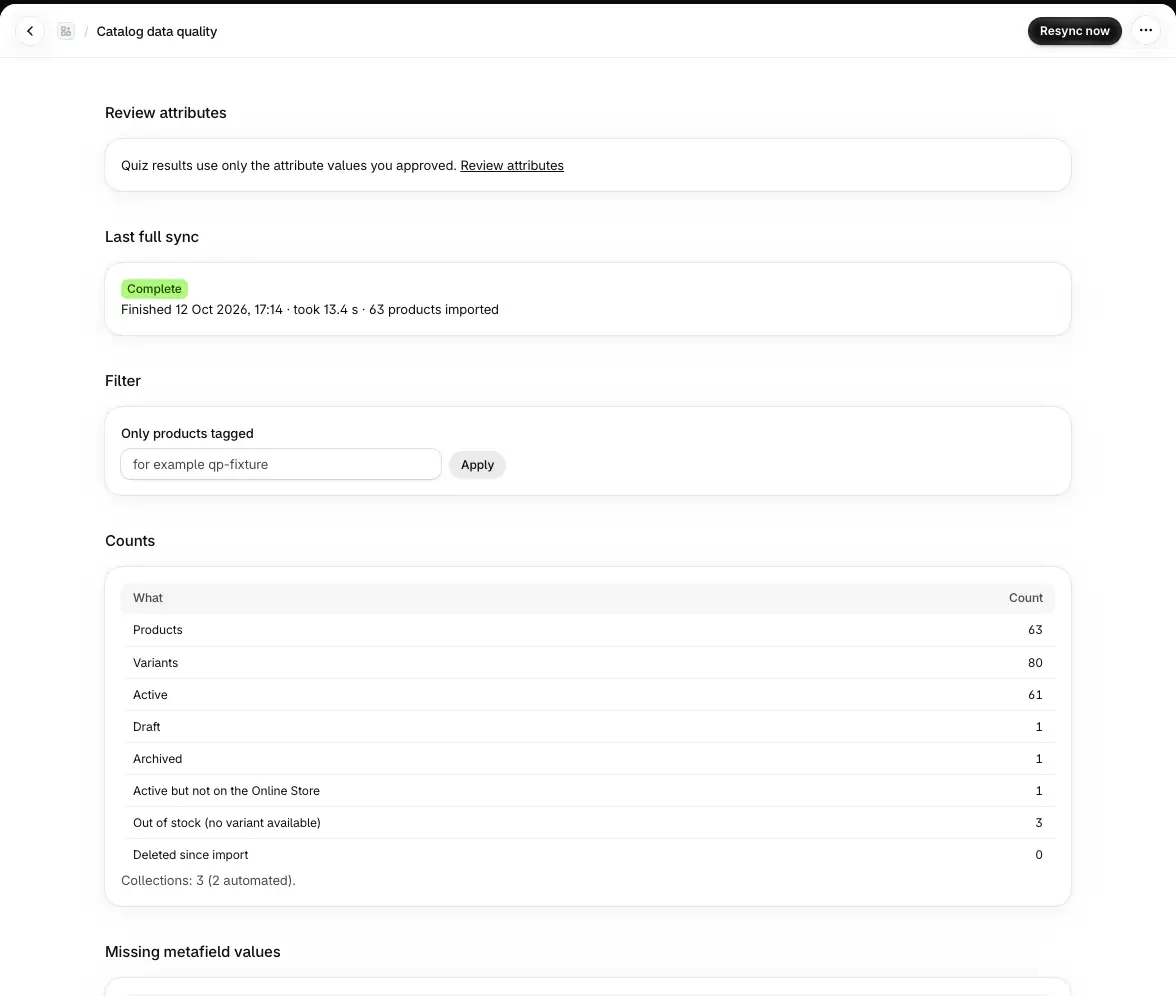
Settings › Catalog data quality shows:
Last full sync: when it finished, how long it took and how many products were imported.
Counts: products, variants, active, draft, archived, active but not on the Online Store, out of stock, and deleted since import.
Missing metafield values: for each metafield Quizproof reads, how many products lack a value.
Tag vocabulary: your most used tags and how many products have each.
Markets: the countries and currencies Quizproof keeps prices for.
Products: open one to see each attribute's value, where it came from, and to set a value by hand.
Only products tagged narrows the page to one tag.
Choose which metafields are read#
By default Quizproof reads every product and variant metafield you have defined, up to 50. To pick them yourself:
Go to Settings › Catalog data settings.
Untick Read every metafield definition (default) and tick the metafields you need.
Save. Quizproof re-reads your catalog with the new selection.
Only metafields with a definition are listed. Create definitions in your Shopify admin under Settings › Custom data.
Attributes and sources#
An attribute is one fact about your products that quiz rules can use. Templates create the ones they need in their setup; you can add your own under Settings › Attributes › Add attribute:
Label (what you see, for example "Skin type") and Key (for example
skin_type, used by rules; it can't change later).Kind: Single value (enum), Several values (multi), Number or Yes/no (bool).
Describes: Products, or Variants when each variant has its own value (shade, size, price band).
Allowed values (optional): values outside the list are dropped.
Then Add source to say where the values come from (Read values from):
| Source | What it reads |
|---|---|
| Tags | Product tags mapped to values |
| Tag prefix | Tags that start with a prefix: skin-dry gives "dry" |
| Metafield | A product or variant metafield |
| Product type | Product types mapped to values |
| Vendor | Vendors mapped to values |
| Collections | Collections mapped to values |
| Variant option | An option such as Shade or Size (variant attributes) |
| Price bands | Each variant's price sorted into bands, per market (variant, single-value attributes) |
Choose Preview impact to see what saving would change, then Save source. With several sources, the one with priority 1 is checked first and the first value found wins; a Several values attribute combines them all.
Approve the values#
New values wait for your approval. Go to Settings › Catalog data quality › Review attributes:
Serving now shows how many products are hidden from results and why.
Each attribute groups its pending values. Review shows the products; Approve with a count approves one value for all of them; Approve all derived values for and the attribute's name approves them all.
Quarantined now lists products taken out of results until you review a change.
While AI is available, products your sources leave empty can get values suggested by AI, which also wait for your approval here. See Draft a quiz with AI.
A wrong value on one product: open it from Catalog data quality, choose Set value, then Save value. A manual value wins over every source until you choose Clear manual value.
Later catalog changes that affect results are also listed on Changes. See how change control works.
If it doesn't work#
Home says the import failed or was incomplete. Choose Resync now on Catalog data quality. An incomplete import keeps the products it could read and removes nothing. If it fails again, email us the message.
A metafield I need isn't listed. It has no definition, or you chose your own selection. Add a definition in Shopify, or tick it under Catalog data settings.
An attribute shows Broken. The data its source reads is gone (a deleted metafield definition, for example). Fix the cause, then save the source again.
A product never shows in results. Its values are waiting for approval, it is quarantined, or it isn't on the Online Store. Check it on Catalog data quality.
Related#
Questions? Email support@quizproof.app.
Menu paths such as Settings › Privacy are inside Quizproof: in your Shopify admin, open Apps › Quizproof. Where an article means Shopify's own settings, it says so.
Something unclear? Email support@quizproof.app. We aim to reply within 1 business day.
More in Your data: How change control works, Privacy and consent, Analytics: completions, add to cart and revenue from quizzes, Notifications and alerts