 Quizproof
Getting started
Quizproof builds product-recommendation quizzes that only ever recommend products and rules you have approved. The setup guide on Home walks you through five steps. Each step ticks itself off when Quizproof sees it done; you never tick anything by hand.
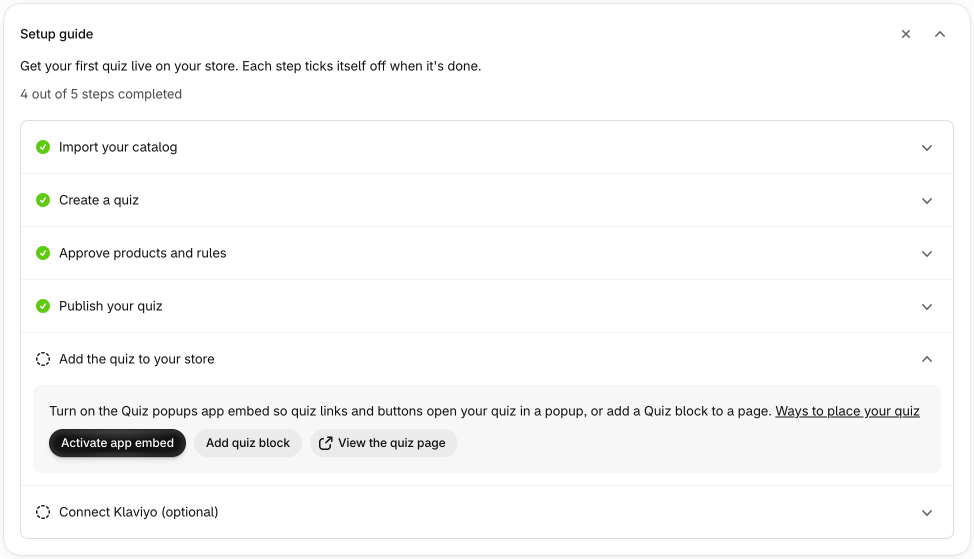
1. Import your catalog#
Right after you install, Quizproof reads your products from Shopify once: titles, tags, product types, metafields, variants and market prices. Home shows the progress. Everything else unlocks when the import finishes. From then on Quizproof keeps the catalog in sync by itself.
2. Create a quiz#
Choose Browse templates in Home's setup guide (or Start from a template on the Quizzes page) and pick the template closest to your shop (skincare routine, supplements, gift finder and more). A template brings ready-made questions, rules and copy. You can also start from a blank quiz on the Quizzes page.
3. Approve products and rules#
A template's setup connects its questions to your own product data: for example "skin type" to the tags dry and
oily on your products. Quizproof suggests the match; you confirm it. Then:
Approve the product values: Quizproof reads each product's value (skin type: dry) and waits for your approval before a product can be recommended.
Decide each rule: Template rules arrive as proposals ("Dry skin → show products for dry skin"). Approve, edit or reject each one.
Nothing reaches shoppers that you haven't approved. See how change control works for what happens when your products change later.
4. Publish your quiz#
Publishing runs the checks over the quiz's answer paths (empty results, conflicting rules, rules still waiting for a decision) and makes the version live. Shoppers only ever see a published version; you can keep editing the draft, preview it and publish again.
5. Add the quiz to your store#
Turn on the Quiz popups app embed in your theme, or add a Quiz block to a page. The guide's buttons open the theme editor at the right place; save there and come back. See placing your quiz for every option.
Optional: connect Klaviyo#
Send opted-in quiz takers, their answers and their recommended products to Klaviyo for your email flows. See Klaviyo setup.
After setup#
Home keeps showing what matters once the guide is done or dismissed: whether your catalog is in sync, whether the quiz is on your store, changes waiting for review, completions, add-to-cart rate and revenue from quiz results, and your plan's usage.
Questions? Email support@quizproof.app.
Menu paths such as Settings › Privacy are inside Quizproof: in your Shopify admin, open Apps › Quizproof. Where an article means Shopify's own settings, it says so.
Something unclear? Email support@quizproof.app. We aim to reply within 1 business day.
More in Getting started: Quick answers