 Quizproof
Connect your product data to a template
A template asks about things like skin type or roast, so it needs to know where that information lives in your products. The template setup suggests a match from your tags, metafields and variant options; you confirm it, approve the product values, decide the template's rules and publish. Nothing reaches shoppers until you approve it.
Start a template#
Go to Quizzes and choose Start from a template.
Each card shows what the quiz asks and, under What you need, the product data it reads. Choose Use this template.
Check the questions and the list under What you need in your catalog, give the quiz a name and choose Start setup.
The setup has seven steps. You can leave at any time: the quiz appears on Quizzes with a "Continue setup (step 3 of 7)" link that reopens the step you left. The quiz keeps its own copy of the template, so a later change to the template never changes your quiz.
Step 2: Map attributes#
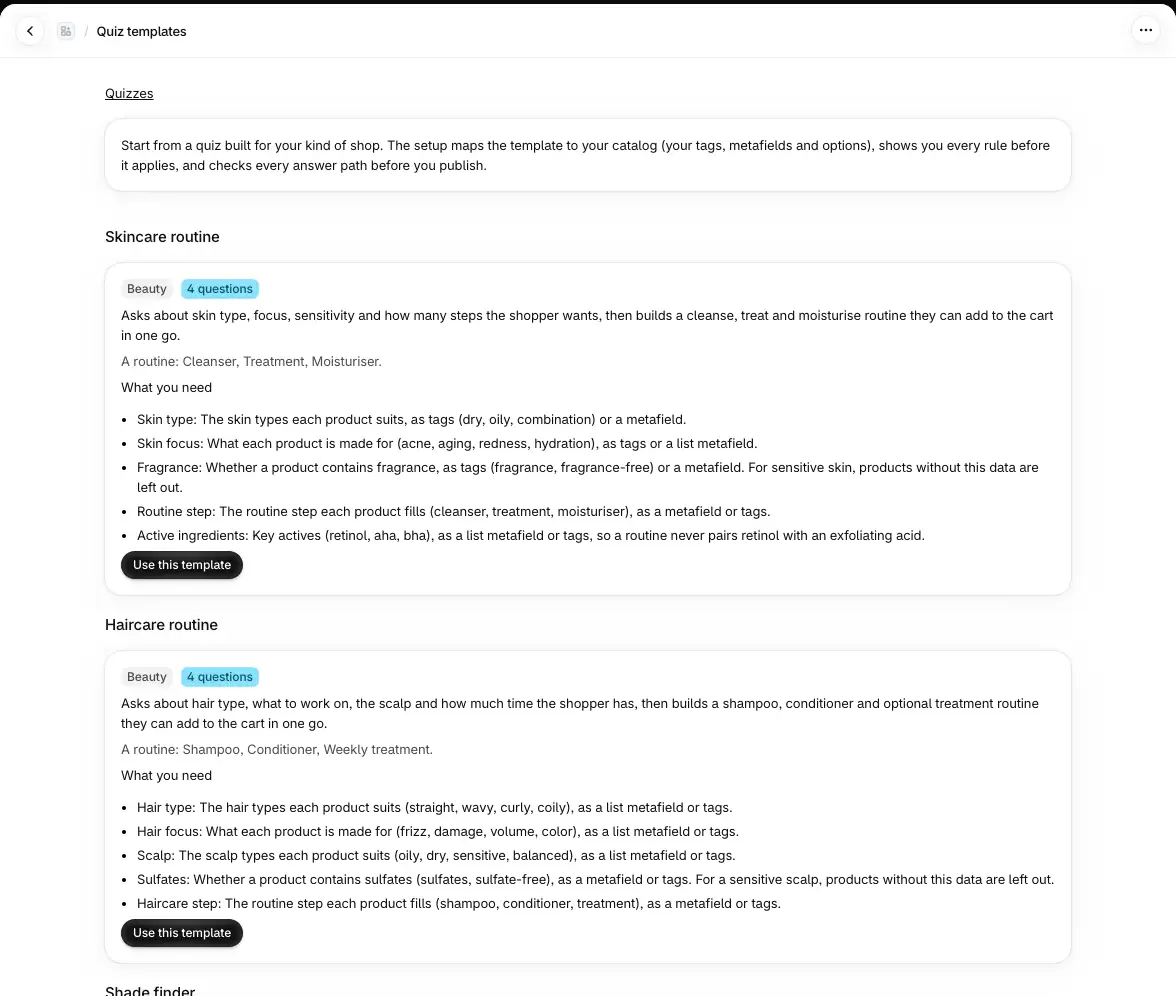
For each attribute the template reads, choose one of three:
Use an attribute you already have: pick it under Attribute, then choose which of its values matches each template value. Only attributes of the same kind and level fit; when none does, the option says "(none fits)".
Create a new attribute from your catalog data: under Where the values come from, choose Tags, Tag prefix, Metafield, Product type, Vendor or Collections (and Variant option or Price bands for variant-level attributes such as shades). The Suggestions column lists your values that look like each template value, with how many products carry them; select one from the tags or metafield you chose to map it. "No match; choose manually" means Quizproof found no likely value.
Skip for now: nothing is created.
Quizproof pre-fills each attribute: an attribute you already have with the same name, otherwise the catalog data that covers it best, otherwise Skip for now. Check the choices, then choose Save mapping and continue.
What happens to unmapped values#
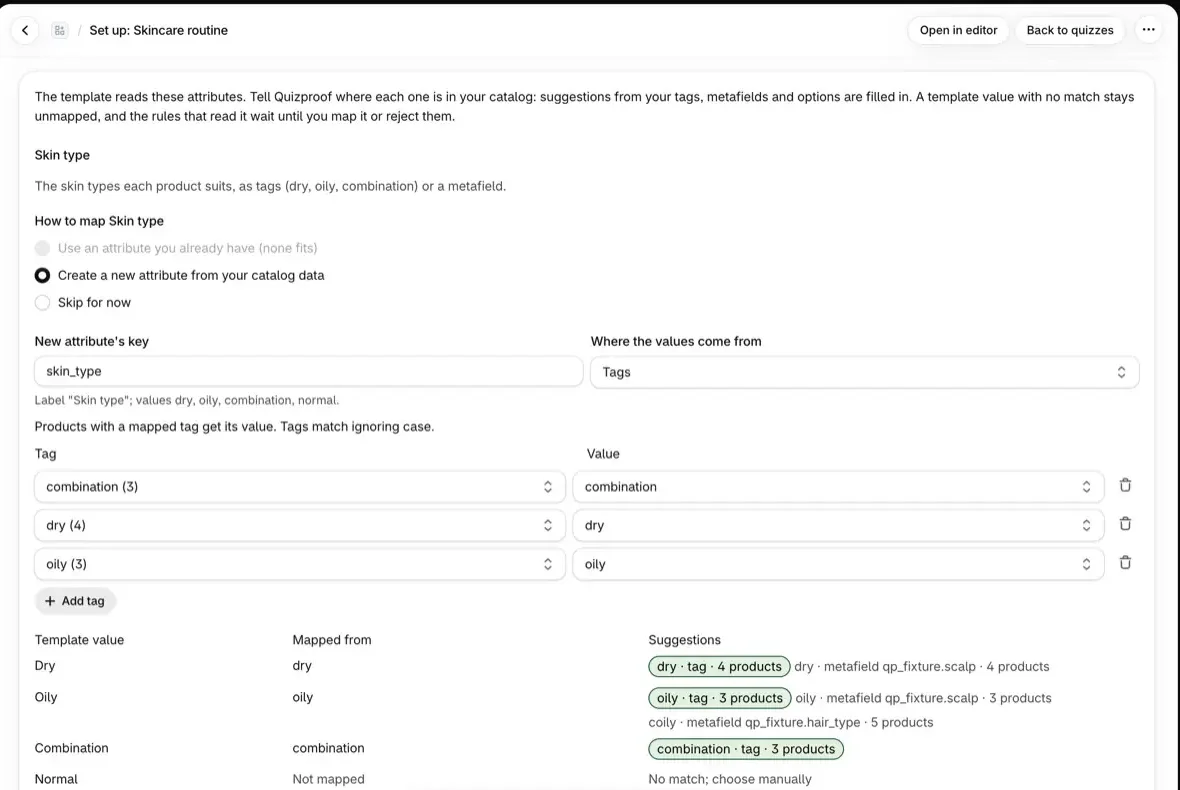
A template value with no match stays unmapped. The line under the attribute names it: "Not mapped: …". The rules that read an unmapped value, or a skipped attribute, show Needs mapping, can't be approved, and block publishing. To unblock, go back to Map attributes and map it, or reject those rules in Decide rules.
A new attribute keeps only the template's values. A product whose data says something else (say, an ingredient the template doesn't list) counts as having no data for that attribute.
The remaining steps#
Approve values: Quizproof reads each mapped attribute's values from your products. Values from a new source wait for your approval. Approve each value group with its Approve button, or all of an attribute's values at once.
Decide rules: every template rule arrives proposed. Approve, Edit or Reject each one, or approve all of a question's rules at once. A safety rule, such as leaving out fragranced products for sensitive skin, also leaves out products that have no data for it; the step says so under the rule.
Checks: what blocks publishing, each with a link to fix it, and what the checks found on the quiz's answer paths. Warnings about health-claim phrases never block.
Preview and test: try the quiz in the preview, or choose Test on store for a private link to the draft.
Publish: choose Publish. When it is live, View on store and Go to the quiz page appear.
If you go back and change the mapping later, approved rules whose products it changes go back to proposed for you to decide again; rules you edited yourself stay as you left them.
Templates#
| Template | What it recommends |
|---|---|
| Skincare routine | Cleanser, an optional treatment and moisturiser |
| Haircare routine | Shampoo, conditioner and an optional weekly treatment |
| Shade finder | Three shades, one per product |
| Supplements | Three products, subscribe and save selected |
| Coffee and tea | A best pick and two alternatives, subscribe and save selected |
| Pet food and care | Four products, subscribe and save selected |
| Gift finder | Four gifts within the shopper's budget |
| Product finder | Six products for any catalog |
If it doesn't work#
A rule can't be approved and says it needs mapping. It reads a value you left unmapped. Map it in step 2 or reject the rule.
The option reads "Use an attribute you already have (none fits)". Your attributes differ in kind or level (product or variant). Create a new attribute instead.
"This quiz was saved elsewhere since you opened it." The quiz was edited in another window. Reload and continue.
Related#
Questions? Email support@quizproof.app.
Menu paths such as Settings › Privacy are inside Quizproof: in your Shopify admin, open Apps › Quizproof. Where an article means Shopify's own settings, it says so.
Something unclear? Email support@quizproof.app. We aim to reply within 1 business day.
More in Building quizzes: Draft a quiz with AI, Questions, answers and branching, How Quizproof chooses products: rules, Preview, test, publish and roll back, Match your brand: design and shopper text