 Quizproof
Preview, test, publish and roll back
Your edits save to a draft as you type; shoppers only see what you publish. Check the draft in the Preview next to the editor, on your own store with Test on store, or answer by answer in the Simulate page. Publish runs the checks and makes the draft the live version. Versions lets you go back to any earlier one.
Saving#
The editor saves about a second and a half after you stop typing, and when you leave a field. The line under the heading says "All changes saved." with the draft revision. While something isn't saved, Shopify's save bar shows Save and a discard button, which goes back to the last save. If you try to leave with unsaved changes, the admin asks you first.
If a save fails, "Couldn't save your changes" appears and your changes stay on the page. After a connection error Quizproof tries again by itself; Retry now tries at once.
Preview#
The Preview pane runs the quiz next to the editor, including changes not saved yet. It is approximate: your theme's fonts and colours apply on your store, and prices are in your shop currency. Restart preview starts it again. On a narrow screen, choose Preview to show it. Proposed rules don't apply in the preview.
Test on your store#
Choose Test on store in the editor. It is available once everything is saved and nothing has an error.
A new tab opens the draft on your storefront. The "Test link ready" note keeps the link.
Test runs don't count toward your plan's completions and are left out of analytics. The link works for 24 hours and only while the draft stays at the same revision: after you change the draft, make a new link. An old link shows the live version instead, if the quiz has one.
The simulator#
On the quiz page, Simulate lets you answer the questions, pick a Pricing context (it sets the prices and budget thresholds a shopper sees) and choose Simulate. It shows the products shoppers would get, each product's score and why, which products were left out and by which rule, and when the no-match message would show. It runs the saved draft.
Publish#
Choose Publish in the editor or on the quiz page. Publishing uses the saved draft, so it waits until your changes are saved.
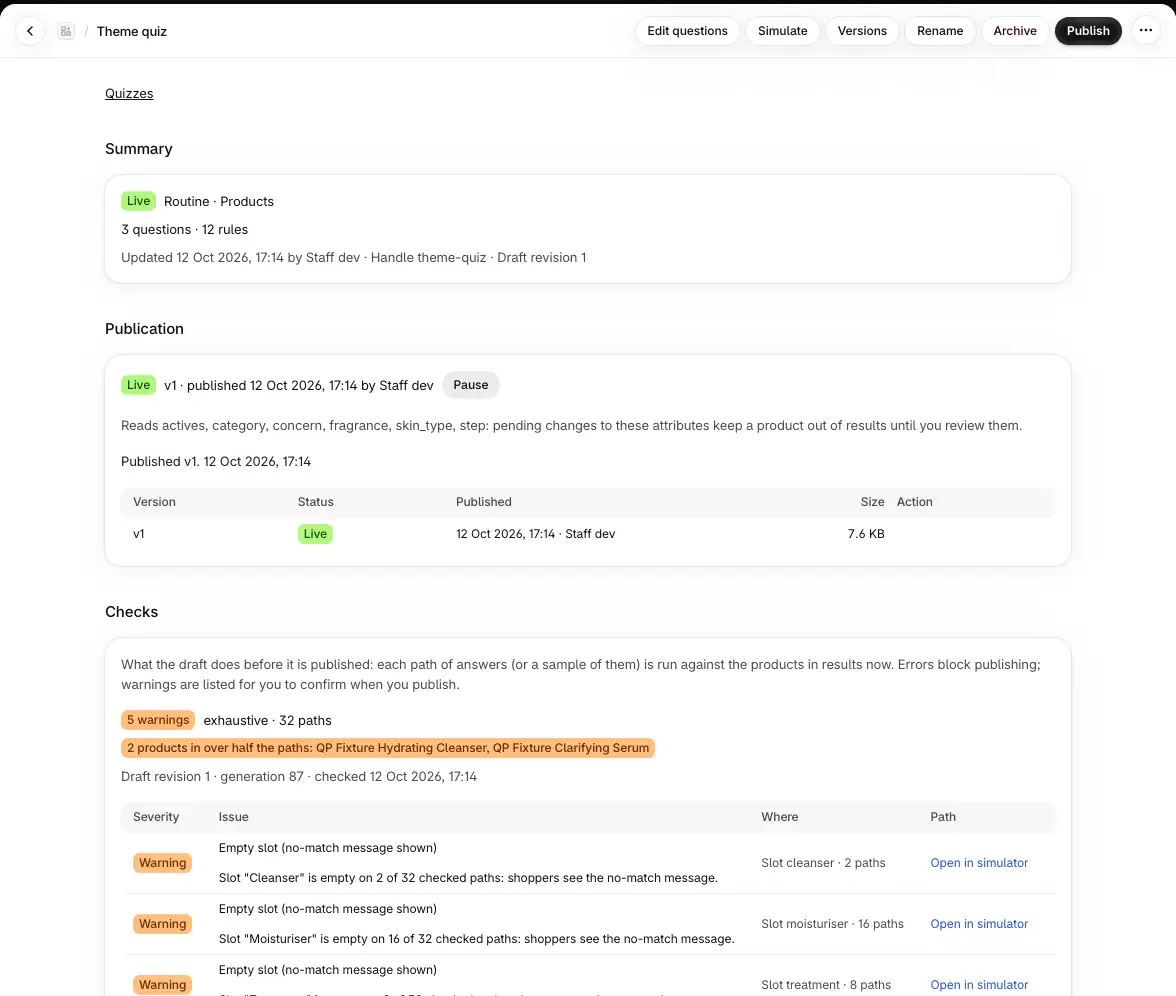
Errors block. "This draft can't be published yet" lists each one with a link to fix it, for example a rule waiting for a decision, a loop in the flow, or a pinned product that a rule leaves out.
Warnings need your confirmation. "Publish with these warnings?" lists them, with what going live changes, such as products hidden until you review a change. Choose Publish anyway (with several warnings, "Publish with 3 warnings") or Cancel.
The quiz page's Publication section then shows the progress and "Published v2." when it is done. Pages on your store can keep showing the previous version for a short while after that. Shoppers already in the quiz finish on the version they started.
Versions and rolling back#
Versions, on the quiz page or in the editor, lists every published version with its status, when and by whom it was published, and what the checks found.
View shows a version and what changed from the one before it; Compare with picks another.
Roll back makes an older version live again, after showing what going live changes. It goes live the same way a publish does. Your draft doesn't change.
Duplicate as draft replaces your draft with that version's questions, rules, results, design and text. Unpublished changes in the draft are lost; nothing changes on your store until you publish.
Pause a quiz#
In Publication on the quiz page, Pause takes the quiz off your store; Resume serves the live version again. See placing your quiz for what shoppers see while it is paused.
If it doesn't work#
Publish is greyed out. The line under the heading says why ("Publish is unavailable: …"): an error to fix, unsaved changes, or rules that need a decision.
The test link shows the old quiz. The draft changed after you made the link, or it is more than 24 hours old. Choose Test on store again.
"The storefront hasn't switched to v3 yet". Quizproof couldn't confirm the switch. Shoppers keep getting the previous version; it retries every 30 seconds. Choose Retry now, or revert to the version the storefront shows.
"Edited elsewhere: reload to see the latest". Someone saved this quiz in another window. Choose Reload; Copy my changes keeps yours on the clipboard.
Related#
Questions? Email support@quizproof.app.
Menu paths such as Settings › Privacy are inside Quizproof: in your Shopify admin, open Apps › Quizproof. Where an article means Shopify's own settings, it says so.
Something unclear? Email support@quizproof.app. We aim to reply within 1 business day.
More in Building quizzes: Connect your product data to a template, Draft a quiz with AI, Questions, answers and branching, How Quizproof chooses products: rules, Match your brand: design and shopper text