 Quizproof
Questions, answers and branching
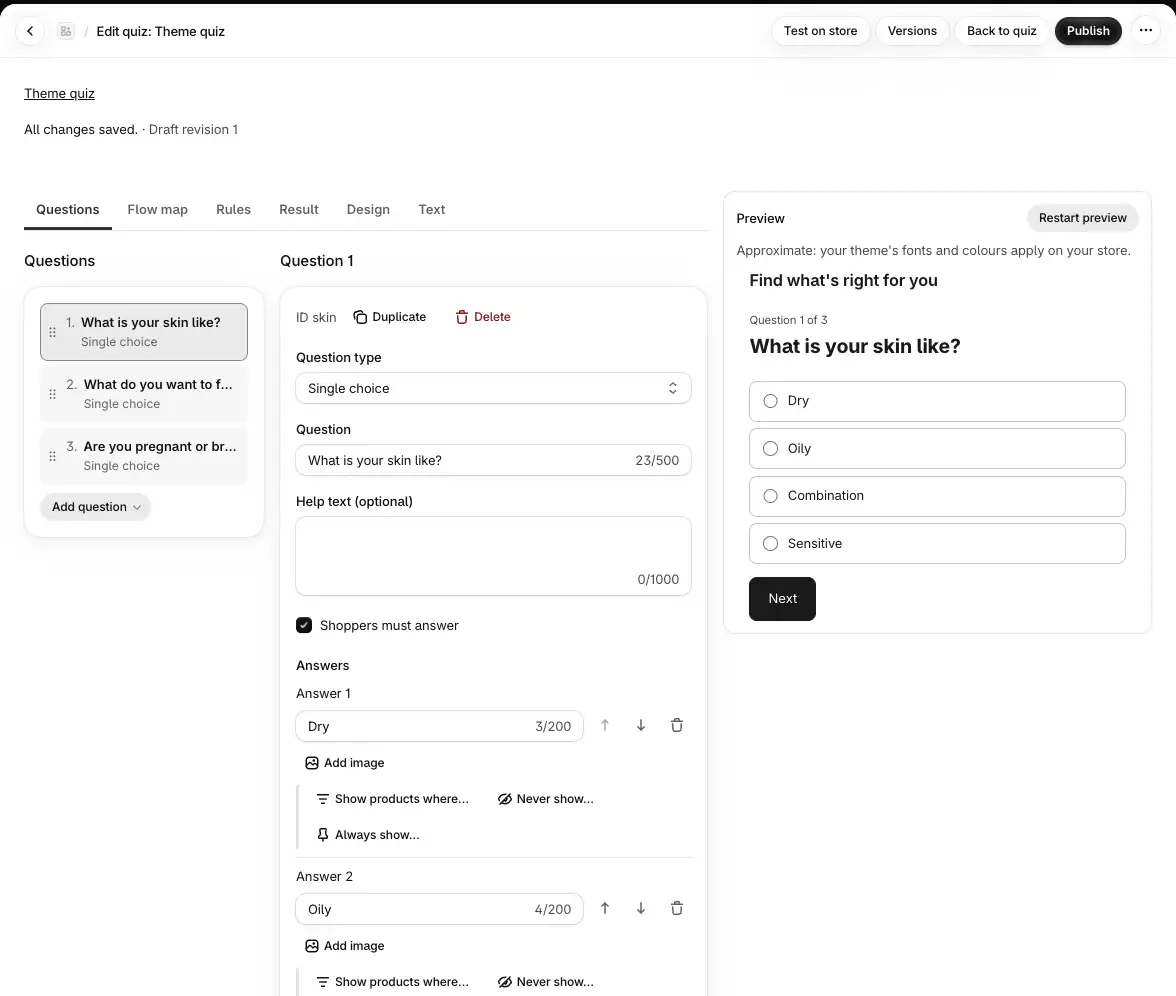
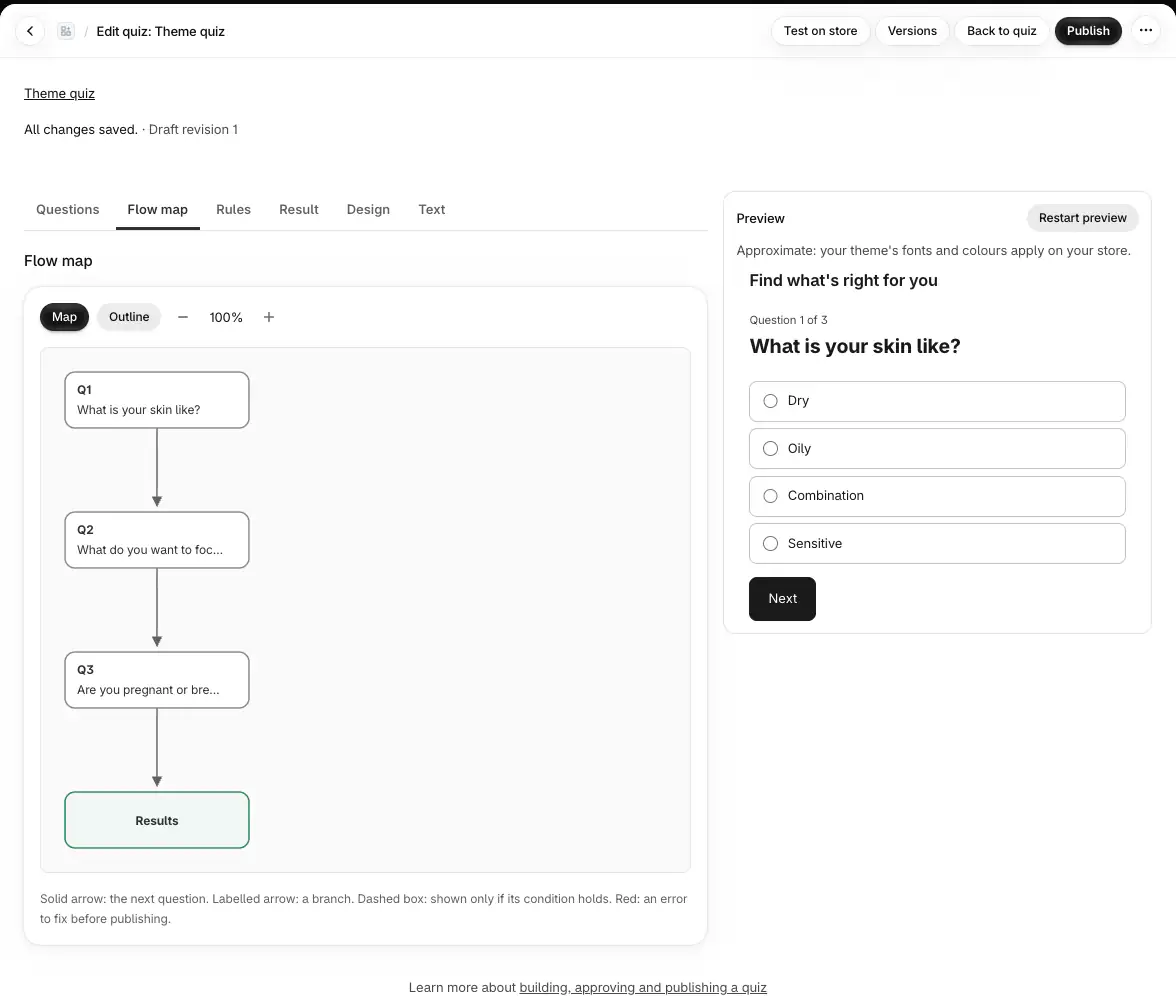
Open a quiz and choose Edit questions. Add questions with Add question, fill in the answers, and use each question's Logic section to show it only for some shoppers or to send them to a different question next. The Flow map tab draws the whole path. Your changes save as you type; shoppers see them only after you publish.
Add and arrange questions#
On the quiz page, choose Edit questions and open the Questions tab.
Choose Add question and pick a type.
Write the Question and, if you like, Help text (optional).
Drag a question in the list to move it. With a keyboard, focus its handle, press Space or Enter, move it with the arrow keys and press Space or Enter again.
Duplicate copies a question; Delete asks you to confirm with Delete question.
A quiz can have up to 100 questions.
Question types#
| Type | What shoppers do |
|---|---|
| Single choice | Pick one answer |
| Multiple choice | Pick several answers. Set Fewest picks (optional) and Most picks (optional) to limit them |
| Image choice | Pick one answer shown as an image |
| Dropdown | Pick one answer from a list |
| Number | Type a number between Minimum and Maximum |
| Slider | Slide to a number between Minimum and Maximum, in steps of Step |
| Info screen | Read a Heading and Text; there is nothing to answer |
| Opt-in | Leave an email address. See the email opt-in |
Number and slider questions can show a Unit (optional), such as "kg". A quiz can have one opt-in question.
Answers#
Choice questions need at least two answers and can have up to 50. Choose Add answer to add one; the arrows move an answer up or down.
Single choice, multiple choice and image choice answers can have an image: choose Add image, pick a PNG, JPG or WebP of up to 5 MB, describe it under Image description (alt text) and choose Upload. The description is required; shoppers using a screen reader hear it with the answer. Dropdown answers have no images.
Shoppers must answer makes a question required. Shoppers who try to go on without answering see "Please choose an answer to continue." New questions start as required.
Save the answer to the customer adds a shopper's answer to their Shopify customer as a tag, when they opt in.
Which products each answer leads to is set with rules. See how Quizproof chooses products.
Show a question only sometimes#
Under Logic, tick Show this question only if… and build the condition from earlier questions:
choice questions: is any of or is none of some answers;
number and slider questions: is at least, is at most or is between.
Add condition and Add group combine several, with Match set to all or any of them. Shoppers who don't meet the condition skip the question, and their earlier answer to it, if any, is ignored.
Send shoppers to a different question#
Under After this question, choose Add branch, set the condition and choose where then go to leads: a later question or Results. Branches are checked in order and the first that matches wins. Otherwise go to sets where everyone else goes; by default that is the next question. A question can have up to 20 branches, "Otherwise" included.
The flow map#
The Flow map tab shows every question and Results. A solid arrow is the next question, a labelled arrow is a branch, a dashed box is a question shown only when its condition holds, and red marks an error. Outline shows the same as a list. Select a question to open it in the editor.
What blocks publishing#
The editor checks the flow as you edit and marks problems at the question. These block publishing:
a branch that goes back to an earlier question (a loop);
a question, or Results, that no shopper can reach;
a condition that reads a question shoppers haven't answered yet, or a question that was deleted.
"Answer changes nothing" is a warning only: no rule, branch or text uses that answer. You confirm warnings when you publish.
If it doesn't work#
Add question is greyed out. The quiz has 100 questions, the most it can have.
I can't tick "Show this question only if…" on the first question. Only questions before a question can decide whether it shows.
"Describe the image for shoppers who can't see it." Fill in the image description before uploading.
"Use a PNG, JPG or WebP image." or the image is over 5 MB. Convert or shrink the image and try again.
The banner says "Edited elsewhere: reload to see the latest". Someone saved the quiz in another window. Choose Reload to see the latest; Copy my changes first keeps yours on the clipboard.
Related#
Questions? Email support@quizproof.app.
Menu paths such as Settings › Privacy are inside Quizproof: in your Shopify admin, open Apps › Quizproof. Where an article means Shopify's own settings, it says so.
Something unclear? Email support@quizproof.app. We aim to reply within 1 business day.
More in Building quizzes: Connect your product data to a template, Draft a quiz with AI, How Quizproof chooses products: rules, Preview, test, publish and roll back, Match your brand: design and shopper text