 Quizproof
How Quizproof chooses products: rules
Rules decide which products each answer leads to. The quickest way to add one is under an answer on the Questions tab: Show products where…, Never show… or Always show…. Every rule is also listed on the Rules tab. The same answers on the same catalog always give the same products in the same order.
Add a rule from an answer#
Open the quiz's editor and select a question on the Questions tab.
Under an answer, choose one of:
Show products where…: results for this answer only include products whose attribute matches, for example "Skin type has dry". When Quizproof recognises a value in the answer's label, it starts with it; check it.
Never show…: products that match are never shown to shoppers who give this answer, for example fragranced products for sensitive skin.
Always show…: pick products that always go first for this answer.
For the first two, choose the Attribute, the Comparison and the value, then Add rule.
While you edit, the rule shows a live count, such as "Matches 12 of 54 in results now".
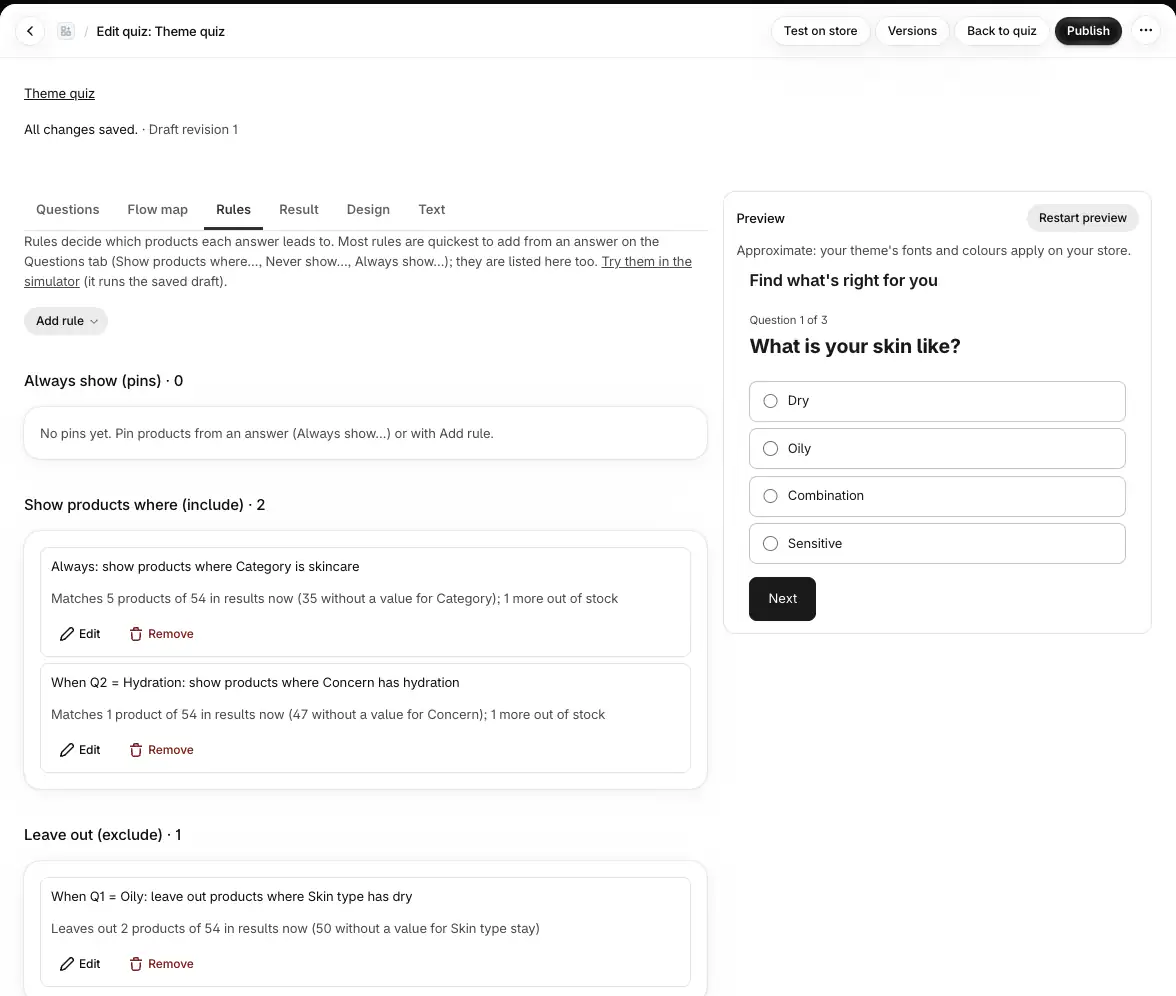
The five kinds of rule#
On the Rules tab, Add rule offers every kind:
| Kind | What it does |
|---|---|
| Always show (pins) | The products go first in results, in pin order. A pin skips include rules only: excludes, hard excludes and stock still apply. |
| Show products where (include) | Results are limited to products that match. Several include rules on one question: any of them; on different questions: all of them. |
| Leave out (exclude) | Matching products are left out of results. |
| Never show (hard exclude) | Matching products are never shown, whatever else applies, pins included. Use it for allergens and sensitivities. |
| Rank higher (weight) | Matching products rank higher. A negative weight ranks them lower. |
A rule added on the Rules tab applies Always or When shoppers answer… a condition you build from your questions. Under Which products, choose Products whose attributes match or Specific products.
Products without the data#
A leave-out or never-show rule asks what to do with products that have no value for the attribute, under Products without this data:
Hide them: the default for Never show (hard exclude). Quizproof can't tell whether the rule applies, so it plays safe.
Keep them in results: the default for Leave out (exclude).
A product with no value never matches an include rule, so it doesn't appear for that answer.
How results are ordered#
Pinned products first, by Priority (lower shows first). Drag pins in the list to reorder them.
Then by score: the sum of the weights of every rank-higher rule a product matches.
Ties are broken in a fixed order, so results never change by chance.
On the Result tab you choose how many products show (How many products (1–50)) or build a routine of steps, and set the no-match message, a fallback collection and texts for answers. Only products that are published, in stock and approved can appear.
Proposed rules#
Rules from a template or AI arrive proposed. They are listed under Needs your decision with Approve, Edit and Reject, and they don't apply to the simulator, the preview or your store until you approve them. A quiz with proposed rules can't be published.
What the checks catch#
Quizproof runs every answer path against your catalog. Errors that block publishing include:
Pin removed by an exclude: a pinned product is also left out on the same path;
Unknown attribute, Unknown value or Comparison doesn't fit the attribute;
Proposed rule: a rule still waiting for your decision;
Empty slot, no no-match message: some answers find nothing and there is no message to show.
Warnings, which you confirm when you publish, include Left out for missing data, One product dominates and Answer alone gives nothing. The Rules tab shows how many errors it has.
When your catalog changes, products whose data changed leave results until you review the change. See how change control works.
If it doesn't work#
A product I expected is missing. Open Simulate on the quiz page and give the same answers. The result shows each product's score and why; Not shown lists the products a leave-out or never-show rule removed, and which rule. A never-show rule set to Hide them also hides products without data.
A pinned product doesn't show. A leave-out or never-show rule removes it on that path, or it is out of stock. Pins only skip include rules.
"No attributes yet. Define them in Settings › Attributes, then come back." Create an attribute first.
Two pins share a priority. Each pin needs its own priority. Drag one to reorder them.
Related#
Questions? Email support@quizproof.app.
Menu paths such as Settings › Privacy are inside Quizproof: in your Shopify admin, open Apps › Quizproof. Where an article means Shopify's own settings, it says so.
Something unclear? Email support@quizproof.app. We aim to reply within 1 business day.
More in Building quizzes: Connect your product data to a template, Draft a quiz with AI, Questions, answers and branching, Preview, test, publish and roll back, Match your brand: design and shopper text